
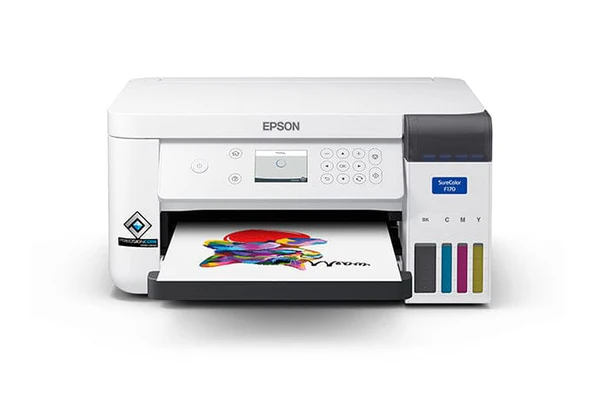
If you own an Epson printer in the EcoTank line, you already know the appeal: no ink cartridges to swap out every few weeks, generous refillable tanks, and solid output for everyday printing tasks. But even reliable machines have a weak spot, and for EcoTanka owners, it almost always comes down to the print head. Streaky output, missing colors, or blank pages despite full tanks are classic signs that something is interfering with how ink moves through the system.
Most Epson EcoTank printhead problems respond well to troubleshooting. You do not need a technician for the majority of these issues. If you are exploring your options in the meantime, you can buy printers online to compare current Epson printer models before committing.
What Are Epson EcoTank Printhead Problems
The print head is the component inside your Epson printer that pushes ink through microscopic nozzles and deposits it onto the page. Unlike brands that attach the print head to a replaceable cartridge, Epson installs a permanent one directly inside the device. That design supports consistent print quality and less long-term waste, but it also means the print head is expected to last the full life of both the printer and its ink system.
When those nozzles get blocked by dried ink, air bubbles, or debris, poor print quality follows quickly. The Epson printer will keep running, but what comes out on paper will tell a different story. These are typical ink‑related issues, and they often show up as faded output, missing colors, or unexpected blank pages even when tanks appear full
Common Symptoms of Epson EcoTank Printhead Problems
These problems are usually easy to identify. Common signs include faded or streaky output even when ink levels are full, missing colors (especially magenta or cyan), horizontal white bands across the page, and blank pages despite correct printer settings. Gaps in the nozzle check pattern are another reliable signal. Any of these symptoms points to a print head that is clogged or not working correctly.
Why Do Epson EcoTank Printhead Issues Occur?
 Several factors lead to print head problems, and inactivity tops the list. When an Epson printer sits unused for long stretches, ink drying inside the nozzles can progress from a manageable clog to permanent damage. According to a U.S. patent filing on inkjet printheads, nozzle failure from idle time can become unrecoverable within hours to days, depending on the print head's condition beforehand.
Running the Epson printer with ink cartridges nearly depleted is another common trigger, since low ink levels draw air into the lines. Using non-genuine Epson ink that contains particles incompatible with the MicroPiezo mechanism can cause similar damage. Neglecting printer software updates or skipping routine maintenance over time also takes a toll on optimal performance, as these updates often fix bugs that affect print‑job handling and driver stability.
One thing worth knowing: automated cleaning is not always the solution it appears to be. Each cleaning cycle deposits waste ink on an internal pad, and if that pad becomes saturated, the residual ink dries directly on the print head and worsens the clog. Running cycles back to back without pausing typically makes things worse. The maintenance box in an Epson printer collects ink waste when you print, and it must be replaced when it reaches its capacity to ensure the printer continues functioning correctly.
Step-by-Step: How to Check for Printhead Issues
Before attempting any fix, run a proper Epson printer troubleshooting diagnostic to confirm the print head is the actual source of the problem. Here is how to do it using the printer's control panel or printer software.
Step 1: Turn on the printer and load plain paper
Press the power button and wait for the Epson printer to finish initializing. Load plain paper into the paper feed tray and verify that the paper size setting matches for regular printing. Check the power cable and make sure it's securely plugged.
Step 2: Access the maintenance menu
On the printer's control panel, go to Settings, then Maintenance. You can also access this through your computer's operating system via the printer software by selecting the correct printer from the device list. Make sure the software is up to date and that the printer is connected to the correct network. If the wrong printer is selected or it is on a different Wi‑Fi band, the test may fail or behave erratically.
Make sure the software is up to date and that the printer is connected to the correct network. For connectivity issues, ensure the printer and computer are on the same Wi‑Fi network and that all cables are securely connected.
Step 3: Run a nozzle check test
Select Nozzle Check and confirm. The Epson printer will output a test grid for all ink colors. It takes under a minute and uses minimal ink.
Step 4: Examine the printed pattern carefully
Hold the test page under good light. Clean, unbroken lines across every color mean the nozzles are clear. Gaps, faded areas, or missing sections point to blockages in the print head nozzles. Vertical misalignment could also be causing the problem.
Step 5: Compare with the correct pattern
The Epson website provides reference images for healthy nozzle check results by printer model. Compare your page against the guide for your specific device.
Step 6: Repeat the test if needed
If the result is borderline, press the paper feed button when prompted to run the test again. Consistent gaps in the same location across two tests confirm a genuine clog.
Step 7: Note which colors are affected
Identify which channels show gaps. Black ink and magenta are most commonly affected. Tracking this helps you gauge whether cleaning is working.
Step 8: Decide the next step
Clear gaps mean cleaning is needed. If the pattern looks fine but poor print quality persists, the issue may involve printer drivers, paper type, or printer settings rather than the print head itself.
Step-by-Step: How to Fix an Epson EcoTank Printhead

Once the print head is confirmed as the problem, work through these fixes in order. Always start with the gentlest option and escalate only if needed. Let's now explore how to fix printhead problems.
Step 1: Run automatic head cleaning via printer settings
Open the Maintenance menu on the printer's control panel or through your printer software and select Print Head Cleaning. Follow the on screen instructions to complete the cycle. Run a nozzle check afterward to assess the improvement.
Step 2: Perform deep cleaning if needed
If a standard cycle does not resolve the poor print quality, most Epson printer models offer a deeper cleaning option. It applies stronger suction and draws more ink. Let the device rest for a few minutes between attempts, as running it continuously can strain the mechanism. Follow the on screen instructions for your specific printer model.
Step 3: Use power cleaning (if available)
Some EcoTank models include a Power Cleaning function in the advanced settings of the printer's control panel. It is the most aggressive automated option and will deplete ink cartridges noticeably, so reserve it for situations where both standard and deep cleaning have failed. Use the print head alignment utility after this step to recalibrate output if the manual recommends it.
Step 4: Manually clean the printhead (advanced users)
If automated options have not resolved the issue, manual cleaning is the next step. Power off and unplug the Epson printer before opening the cover. Using a lint-free clean cloth lightly dampened with distilled water, gently wipe the nozzle face of the print head. Avoid alcohol-based solutions, which can damage precision internal components. Reassemble, power on, and run a nozzle check before resuming print jobs.
Step 5: Flush the ink system if clogs persist
For blockages that will not clear, a dedicated cleaning kit can manually flush the ink lines. Before attempting this, review Epson support documentation or contact Epson support directly, especially if the Epson printer is still under warranty. If flushing fails, it may be time to look at Epson print head replacement parts.
Preventing Epson EcoTank Printhead Problems
Consistent habits prevent most of these issues from developing. Print at least once a week, even just a test page, to keep ink moving through the print head nozzles and prevent ink drying. Refill before ink cartridges drop to the minimum line, since low ink draws in air. Use genuine Epson ink to avoid particles that can clog the nozzle mechanism, and keep printer drivers current since outdated drivers affect printer performance in ways that are easy to overlook.
For those using the Epson F570 sublimation printer for specialty work, consistent upkeep is especially important because sublimation ink settles and clogs faster during idle periods. Pairing it with quality Epson F570 sublimation ink formulated for that printer model reduces clogging risk considerably.
When to Replace the Printhead
Sometimes cleaning is not enough. If every option has been exhausted and the nozzle check still shows significant gaps, the print head may be physically worn. Repeated paper jams, especially if cleared incorrectly, can also accelerate print head wear over time; paper jams that pull the mechanism out of alignment often contribute to longer-term nozzle damage. To resolve paper jams, it's important to check both the rear paper feed slot and the front cover for debris.
Weigh the cost of a replacement against the age of the Epson printer. For older or entry-level devices, a new printer is often the more practical choice. For newer models, sourcing a compatible part through the Epson website or an authorized service provider is worth pursuing. In such cases, always confirm the part matches your exact printer model to avoid compatibility issues.
Conclusion
Most Epson EcoTank printhead problems trace back to ink drying in idle nozzles or air entering through depleted ink cartridges, both of which can be corrected with the right approach. Staying consistent with nozzle checks, using genuine Epson ink, keeping printer drivers updated, and running routine maintenance protects both your print quality and your investment. If the problem persists or the color density is low after working through every fix, contact Epson support or consult a qualified technician before buying a replacement.
FAQs
How often should I clean my Epson printhead?
Once a month is usually enough for regular users. If print jobs are infrequent, a cycle every two weeks helps prevent ink from drying in the nozzles. Each cycle uses ink, so there is no reason to run it more often than conditions require.
Can I manually clean EcoTank printheads safely?
Yes, with care. Use a lint-free clean cloth dampened with distilled water and wipe only the nozzle face gently. Never apply alcohol directly to the print head, as it can damage the internal components. Always power off and unplug the Epson printer first, and consult Epson support documentation if you are uncertain about accessing any internal parts.
Why is my printer printing blank pages?
A blocked ink channel can stop ink from reaching the print head nozzles entirely, even when ink cartridges appear full. Dried ink or debris cuts off the flow at the source. Run a nozzle check to confirm, then follow up with a cleaning cycle before investigating printer drivers or paper feed settings as secondary causes.
Is it better to repair or replace the printer?
It depends on the age of the Epson product and the realistic cost of repair. If the device is relatively new and the print head is the only issue, repair almost always makes more sense. For an older Epson printer with broader printing problems, a new printer may offer better long-term value. Getting a cost estimate from a technician first makes the decision much easier.
